
HUNT ELECTRONIC CO., LTD.
EN
/
TW
  • Products
  • Solution
  • Contact Us
  • About Us
  • News & Event
  • Support
  • Investor Relations
搜尋

IP Camera

  • Home
  • Support
  • IP Camera

Support

  • IP Camera
  • NVR
  • Analog Solution
  • Software
PoE and Power Adapter applications.
  1. Can [PoE] be used with [Power Adapter] together?
    Answer︰Yes.
  2. When both [PoE] and [Power Adapter] are connected to an IP Device, which one has the first priority to provide power supply?
    Answer︰The one is with higher voltage. Actually, both are 12V. However, [PoE] voltage depends on the distance of the [PoE] cable. As long as the [PoE] cable is longer, its supplied voltage is lower.
  3. If [PoE] disconnects, can an IP Device have power supply via [Power Adapter]?
    Answer︰Yes.
How to remote monitor IP Devices thru mobile phones?
  • 3GPP︰(display MPEG4 images)
    1. 3G mobile phones have built-in streaming media players.
    2. 3G mobile phones support MPEG4.
    3. The following model starts to support 3GPP.
      IP CAM︰MPEG4/ H.264
      Video Server︰MPEG4/ H.264
      Transceiver︰MPEG4/ H.264
      NOTE︰Connecting to H.264 Transceiver HVT-01AT requires opening Streaming2 because the mobile phone receives Streaming2 images.
    4. The IP Device and the Router must set up RTSP and RTP Ports. Refer to as below.
    5. Resolution︰The resolution depends on 3G mobile phones that can support.
    6. Streaming︰(RTSP/ 3GPP Path cannot be modified from 3G mobile phones).
      1. Connect to Streaming1︰Input rtsp://< IP:RTSP Port/
      2. Connect to Streaming2︰Input rtsp://< IP:RTSP Port/v2 
      3. Connect to 3GPP Mode or 3GPP Streaming︰
        (Default Resolution︰[CCD] QCIF and [CMOS] QQVGA)
        Input rtsp://< IP:RTSP Port/3g (w/ Audio)
        Input rtsp://< IP:RTSP Port/3gx (w/o Audio)
    NOTE︰
    1. Connect to HWS-04HD︰(Must adjust Resolution to QCIF)
      Connect to CH1︰Input rtsp://< IP:RTSP Port/CH01 (w/o Audio) 
      Connect to CH2︰Input rtsp://< IP:RTSP Port/CH02 (w/o Audio) 
      Connect to CH3︰Input rtsp://< IP:RTSP Port/CH03 (w/o Audio) 
      Connect to CH4︰Input rtsp://< IP:RTSP Port/CH04 (w/o Audio)
    2. Connect to HWS-04AD 3GPP Streaming︰
      (Default Resolution︰QCIF)
      Connect to CH1︰Input rtsp://< IP:RTSP Port/3g1 (w/o Audio) 
      Connect to CH2︰Input rtsp://< IP:RTSP Port/3g2 (w/o Audio) 
      Connect to CH3︰Input rtsp://< IP:RTSP Port/3g3 (w/o Audio) 
      Connect to CH4︰Input rtsp://< IP:RTSP Port/3g4 (w/o Audio)
  • Mobile Viewer︰(display MPEG4 images)
    1. Mobile phones support Windows Mobile OS that can install Mobile Viewer (Download it from Hunt FTP ftp://hunt_ftp:hunt_ftp@ftp.hunt.com.tw/Mobile_Viewer).
    2. The following model’s version supports Mobile Viewer.
      IP CAM︰
      MPEG4︰Supported till V3.2.68
      H.264 A Series︰Supported till V1.0.26
      Video Server︰ 
      MPEG4︰HWS-01HD (supported till V3.2.68)
      H.264 A Series︰HWS-01AD, HWS-02AD (supported till V1.0.26)
      Transceiver︰ 
      MPEG4︰HVT-01HT (supported till V3.2.48)
      H.264 A Series︰HVT-01AT (supported till V1.0.30)
      NOTE︰
      1. Mobile Viewer only supports H.264 IP CAM/ Video Server A series with JPEG Video Format.
      2. Connecting to H.264 Transceiver HVT-01AT requires opening Streaming2 because the mobile phone receives Streaming2 images.
    3. The IP Device and the Router must set up RTSP and RTP Ports. Refer to as below.
  • Mobile JViewer︰(display MJPEG images)
    1. Mobile phones support JAVA or Blackberry that can install Mobile JViewer (Download it from Hunt FTP ftp://hunt_ftp:hunt_ftp@ftp.hunt.com.tw/Mobile_JViewer).
    2. The following model’s version supports Mobile JViewer.
      IP CAM︰ 
      MPEG4︰Supported till V3.2.58
      H.264 A Series︰V1.0.10 – V1.0.26
      Video Server︰ 
      MPEG4︰HWS-01HD (supported till V3.2.58)
      H.264 A Series︰HWS-01AD V1.0.10 – V1.0.26
      HWS-02AD V1.0.10 – V1.0.26
      HWS-04AD V1.0.50 – V1.0.62
      Transceiver︰ 
      H.264 A Series︰HVT-01AT V1.0.16 – V1.0.30
      NOTE︰
      Mobile phones are with SoftBankor or Docomo OS that is not supported by Mobile JViewer; however, it can input http://< IP:Web Page Port>Jview.html H.264 Transceiver HVT-01AT V supports Jview.html. But, connecting to HVT-01AT requires opening Streaming2 because the mobile phone receives Streaming2 images.
  • Android︰(display MJPEG images)
    1. Mobile phones support Android OS, on browser the user can input http://< IP:Web Page Port>. Its resolution is fixed with QCIF.
    2. Or the user can install iProSecuAM (iProSecuAM V2 V1.8) that receives IP Devices’Streaming1 or Streaming2 images equal or below VGA automatically (recommend Streaming2 resolution setting with VGA). With Android mobile phone, access Google Play and download iProSecuAM.
    3. The following model’s version and new models after the followings start to support Android mobile phone its built-in browser.
      IP CAM︰ 
      MPEG4︰V3.2.68
      H.264 A Series︰V1.0.26
      Video Server︰ 
      MPEG4︰HWS-01HD V3.2.68
      H.264 A Series︰HWS-01AD V1.0.26/ HWS-02AD V1.0.26/ HWS-04AD V1.0.58
      Transceiver︰ 
      H.264 A Series︰HVT-01AT V1.0.16
      NOTE︰Connecting to H.264 Transceiver HVT-01AT requires opening Streaming2 because the mobile phone receives Streaming2 images.
    4. The following models’ firmware versions start to support iProSecuAM/iProSecuAM V2. And, new models after the followings start to support iProSecuAM V2.
      Support iProSecuAM︰ 
      IP CAM︰ 

      MPEG4︰V3.2.66
      Video Server︰ 
      MPEG4︰HWS-01HD V3.2.66
      Support iProSecuAM V2︰ 
      IP CAM︰ 

      H.264 A Series︰IP CAM V1.0.30
      Video Server︰ 
      H.264 A Series︰HWS-01AD V1.0.30/ HWS-02AD V1.0.30/ HWS-04AD            V1.0.58
      Transceiver︰ 
      H.264 A Series︰HVT-01AT V1.0.16
      NOTE︰Connecting to H.264 Transceiver HVT-01AT requires opening Streaming2 because the mobile phone receives Streaming2 images.
  • iPhone︰(display MJPEG images)
    1. On Safari browser, input http://< IP:Web Page Port>/iphone.html. Its resolution is based on IP Device’s setup.
      NOTE︰HWS-04AD resolution is fixed with QCIF.
    2. Or the user can install iProSecuM (iProSecuM V2 V1.5) that receives IP Devices’Streaming1 images.With iPhone, access App Store and download iProSecuM.
    3. The following model’s version and new models after the followings starts to support iPhone Safari browser.
      IP CAM︰ 
      MPEG4︰V3.2.56
      H.264 A Series︰V1.0.10
      Video Server︰ 
      MPEG4︰HWS-01HD V3.2.56
      H.264 A Series︰HWS-01AD V1.0.10/ HWS-02AD V1.0.10/ HWS-04AD V1.0.58
      Transceiver︰ 
      H.264 A Series︰HVT-01AT V1.0.16
      NOTE︰Connecting to H.264 Transceiver HVT-01AT requires opening Streaming2 because the mobile phone receives Streaming2 images.
    4. The following models’firmware versions start to support iProSecuM/iProSecuM V2. And, new models after the followings start to support iProSecuM V2.
      Support iProSecuM︰ 
      IP CAM︰ 

      MPEG4︰V3.2.58
      Video Server︰ 
      MPEG4︰HWS-01HD V3.2.58
      Support iProSecuM V2︰ 
      IP CAM︰ 

      H.264 A Series︰V1.0.30
      Video Server︰ 
      H.264 A Series︰HWS-01AD V1.0.30/ HWS-02AD V1.0.30/ HWS-04AD V1.0.58
      Transceiver︰ 
      H.264 A Series︰HVT-01AT V1.0.16
      NOTE︰Connecting to H.264 Transceiver HVT-01AT requires opening Streaming2 because the mobile phone receives Streaming2 images.

Port and Router Setup︰
  • 3GPP︰
    1. IP Device︰IP Setting - Port Assignment︰
      RTSP Port︰Required (Default 554)
      RTP Start Port︰Required (Default 1024)
      RTP End Port︰Required (Default 10000)
    2. Router︰
      RTSP Port
      Must be the same as the IP Device's and with TCP connection.
      RTP Start Port
      Must be the same as the IP Device's and with UDP connection.
      RTP End Port
      Must be the same as the IP Device's and with UDP connection.
  • Mobile Viewer︰
    1. IP Device︰IP Setting - Port Assignment︰
      RTSP Port︰Required (Default 554)
    2. Router︰
      RTSP Port
      Must be the same as the IP Device’s and with TCP connection.
NOTE︰
  1. With 3GPP connection, if RTSP Port is 554 (Default), for instance just input rtsp://< IP>/3g
  2. Motion Detection, SD card backup, and Mail & FTP setting are processed by Streamin1 so that the mobile phone connection is better not to connect to Streamin1.
  3. Each 3GPP connection requires opening at least four RTP ports (two ports for image transmitting and the other two ports for audio). If the connection is without audio (rtsp://< IP:RTSP Port/3gx), just open two ports for image transmitting. Besides, Mobile Viewer doesn’t support audio, so it also needs to open two RTP ports only.
How to enable 2 Way Audio?
IP Device to PC︰ 
IP Device Configure → A/V Setting → Audio → IP Camera to PC︰Enabled

PC to IP Device︰ 
On Live mode, select [Chatting].
FAQ about 2 Way Audio.
  1. Audio Delay︰
    The Audio will not be smooth when SD card recording function is enabled simultaneously.
  2. Echo problem︰
    If the distance between the IP Device and PC is too close, recommend using a headphone.
What are external microphones' requirements?
Use active microphones with built-in amplifiers.
Frequency Requirement︰20 ~ 100,00Hz
There is an "acmStreamOpen ERROR" message on the web browser.
  1. Make sure the Sound Card is installed.
  2. Make sure imaadp32.acm is set on the first priority. Refer to the step as below.
     
    Steps︰ 
    Control Panel
    • Administrative Tools
    • Computer Management
    • Device Manager
    • Sound, video and game controllers
    • Audio Codecs 
    • Audio Codecs Properties
    • imaadp32.acm
    • imaadp32.acm Properties => Change priority from 1 to 1
Motions are detected, but it does not trigger Email.
  1. Make sure [Sender's Mail] and [Receiver's Mail] are not blocked by Mail Server.
  2. If [Record File Format] is set with AVI, each file size will be above 2MB. Make sure it is not blocked by Mail Server.
  3. Mail Server does not support WEB interface, for instance free Hotmail and Yahoo accounts.
    Hotmail/ Yahoo paid account (with POP3/ SMTP) that is supported.
    *H.264 B series start to support WEB interface.
  4. Mail Server does not support SSL, for instance Gmail.
    *H.264 B series start to support SSL.
  5. If test in LAN; however, the mail server is built in WAN. Make sure the first 3 sections of the IP Device IP Address that can access the Internet.
    Form example, firewall sets up 192.168.1.X that can access the Internet.
    IP Device IP Address: 192.168.1.X
    IP Device Gateway: 192.168.1.254
    PC IP Address: 192.168.1.X
  6. DNS setting (on IP Setting) must follow each own country's ISP.
  7. Router opens a port for mail port.
  8. Motion Mail triggered Steps︰
    1. Event Setting︰Set up [Motion Detection Area], Enable [Area 1, 2, or 3], and Enable [E-mail].
    2. Mail Setting︰Make sure information is correct. After finish the setup, the user can click [Apply] and [Test] to confirm Mail Setting is correct (If the test is successful, it will show [Test OK!], and send out a mail titled with [Mail Test]).
Motions are detected, but IP Deceive does not upload video files to FTP.
  1. If test in LAN; however, the mail server is built in WAN. Make sure the first 3 sections of the IP Device IP Address that can access the Internet.
    For example, firewall sets up 192.168.1.X that can access the Internet.
    IP Device IP Address: 192.168.1.X
    IP Device Gateway: 192.168.1.254
    PC IP Address: 192.168.1.X
  2. DNS setting (on IP Setting) must follow each own country's ISP.
  3. Motion Mail triggered Steps︰ 
    1. Event Setting︰Set up [Motion Detection Area], Enable [Area 1, 2, or 3], and Enable [E-mail].
    2. FTP Setting︰
      • Path︰Add "/" after Path name. e.g. Path︰motion/
      • Mode︰Based on FTP Server setup, select PORT (Active) or PASV (Passive).
When SD card is full, will it automatically overwrite?
Yes. When SD card is full, the system will automatically delete the oldest recording files.
What is one SD card’s recording time?
Motion Detection, SD card backup, and Mail & FTP setting are processed by Streamin1 so that Streaming1 can set up CBR (on Video Setting). As long as the Video Bitrate is fixed, the user can calculate its recording data sizes.

For instance, use an 8GB SD card.
Video Bitrate [1.5Mbps x (rec.) 10sec.] ÷ 8 (bit → Byte) = 1.875MB/ file.
8000MB (8GB) ÷ 1.875MB = 4266.66 (total file numbers within 8GB)
(4266 x 10sec.) ÷ 86400sec. (total seconds within one day) = 0.49375
If the user uses one 8GB SD card, it can record 0.5 days.
Before use Win7 Media Player to play back H.264 AVI files, must install Win7 codec.
Before use Win7 Media Player to play back H.264 AVI files, must install codec (e.g. K-Lite Codec Pack).

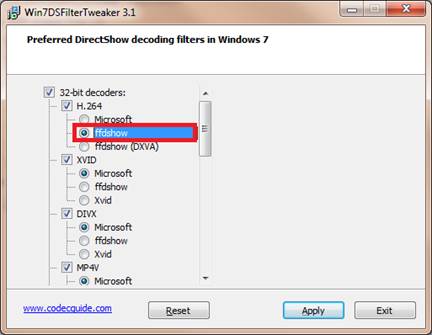
After install K-Lite Codec Pack, access [Start] → [K-Lite Codec Pack] → [Tool] → [Win7DSFilterTweaker]. Right-click on [Win7DSFilterTweaker] and click [Run as administrator].

On Win7DSFilterTweaker – 32-bit decoders - H.264, select [ffdshow].


Download Now︰
http://www.codecguide.com/download_k-lite_codec_pack_full.htm
Forgot username, password, or IP address.
Require Hardware Reset. Refer to Factory Default steps on the user manual.
  • 1
  • 2
  • 3
CONTACT

HUNT ELECTRONIC CO., LTD.

Tel 886-2-8692-7999 
Fax 886-2-8692-6678 
E-mail  
marketing@hunt.com.tw 
Office 9F, No.171, Sec. 2, Datong Rd.,Xizhi Dist, New Taipei City 221424, Taiwan
FACEBOOKLinkedinYoutube
GO
subscription
Cancel
Designed by MIRACLEWeb Design